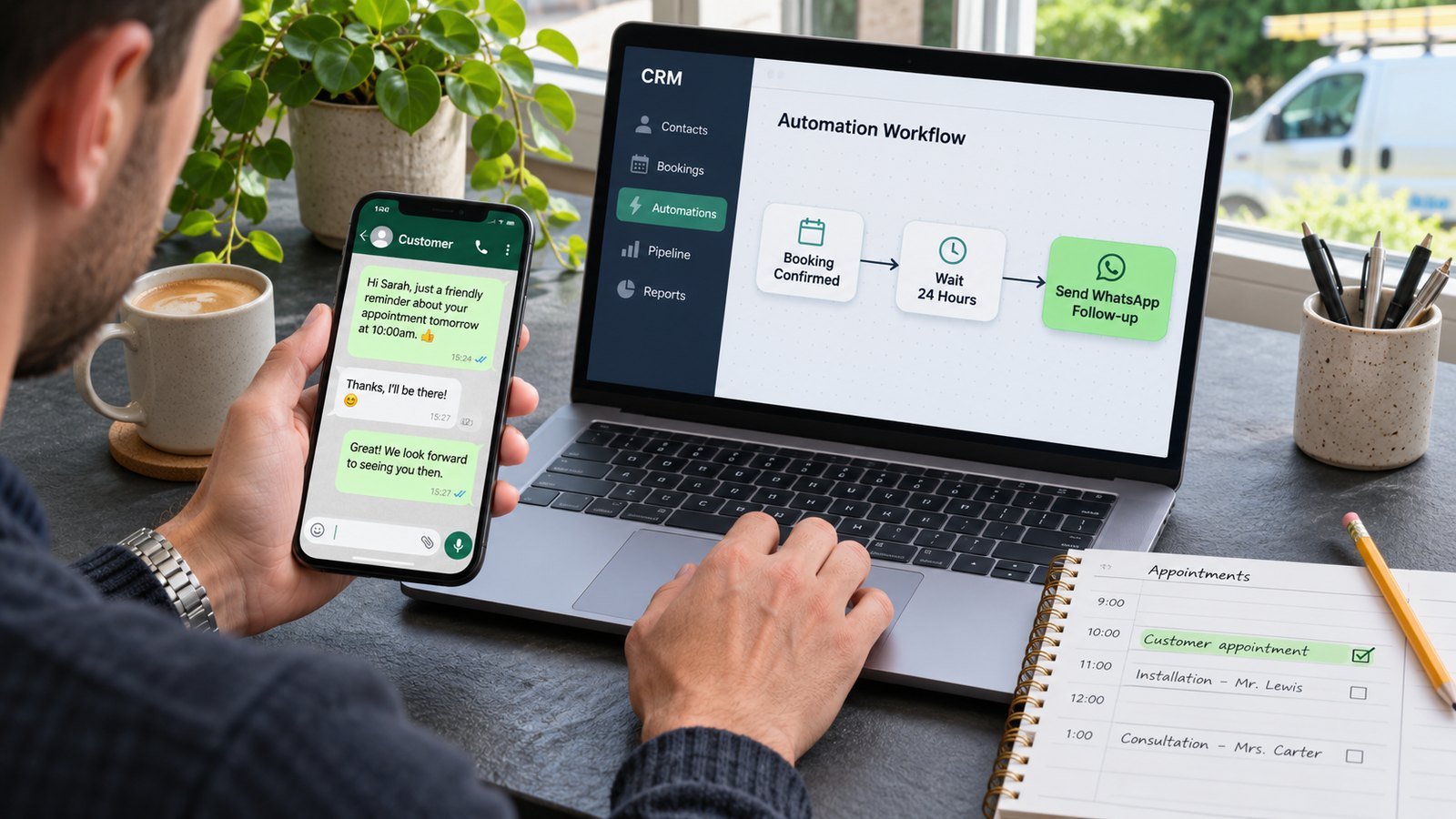
How to Use TekMatix for WhatsApp Marketing
Ad disclosure. I may earn a commission if you sign up for TekMatix through the button below.
A homeowner fills in your quote form at lunchtime. You need one photo before you can tell them what the job involves. If they’ve chosen WhatsApp as a contact option, TekMatix can help you send the first message automatically and keep the reply with the enquiry.
The same setup can help with appointment reminders or a time-limited offer. The message you send depends on what the customer signed up for and whether they’ve already messaged you. If you’re deciding when a chat makes sense and when to use email, start with my WhatsApp vs Email Marketing guide.
Connect WhatsApp to your TekMatix account
Open the relevant TekMatix sub-account and go to Settings > WhatsApp. Follow the connection prompts for the business number you want to use. Once it’s connected, send a message from a test phone to the business number. Check that it lands in Conversations and that you can reply from TekMatix.
TekMatix lists WhatsApp as a separately priced add-on. Check the current rate before planning a campaign, especially if you expect to send in bulk. TekMatix usage and add-on pricing
Set up the right message template
In Settings > WhatsApp > Templates, create a template and submit it for approval. Use the Marketing category for promotional messages such as a discount or an offer to fill empty appointment slots. For an appointment reminder or an update on a service someone requested, choose the category that fits the message and keep the copy focused on that service. TekMatix makes approved templates available in Conversations, Bulk Actions and WhatsApp workflow steps. TekMatix guide to WhatsApp templates
When a customer messages you, WhatsApp opens a 24-hour customer service window. You can send a free-form reply during that window. To start a conversation or send a message once the window closes, use an approved template. A website form submission on its own doesn’t open the WhatsApp window. WhatsApp Business Messaging Policy
Build a workflow for one quote form
- Trigger the workflow when the quote form is submitted. Capture the mobile number and whether the customer wants WhatsApp follow-up for that enquiry. Use a separate, optional opt-in if you also plan to send offers.
- Check their contact preference. Make WhatsApp a branch for customers who have agreed to that channel. Route everyone else to your usual enquiry follow-up using the contact method they’ve provided for that purpose.
- Send an approved template with one next step. Ask for a photo, offer a booking link or ask for a good time to call. Keep the first message specific to the request.
- Give replies an owner. Decide who will check Conversations, answer questions and update the CRM pipeline when a call or appointment is booked. End follow-up when the customer books, declines or opts out.
- Test before switching it on. Submit the form with WhatsApp selected and again without it. Check both routes, then reply from your test phone to see what your team receives.
For a window quote, the first message could be as simple as this.
Hi [first name], it’s Spencer. Thanks for requesting a quote for replacement windows. Could you reply with a photo of the windows you’d like us to look at?
Run an offer for people who asked to hear from you
If you have a quiet Friday, you could send an approved Marketing template to contacts who opted in to WhatsApp offers and are eligible for that promotion. Give them one action, such as tapping through to book. Include an easy way to opt out and make sure future campaigns exclude anyone who takes it. For UK businesses, the ICO explains how the electronic marketing rules apply to direct messages. ICO electronic marketing guidance
Start with one workflow and track the outcome that matters to the business. For a quote enquiry, count how many people book within seven days. If you’re also using email, compare bookings per enquiry across both channels before expanding the campaign.