Ad | How to Use Metricool to Schedule Social Media Posts
Ad. I may earn a commission if you sign up through my button and take out a paid Metricool plan.
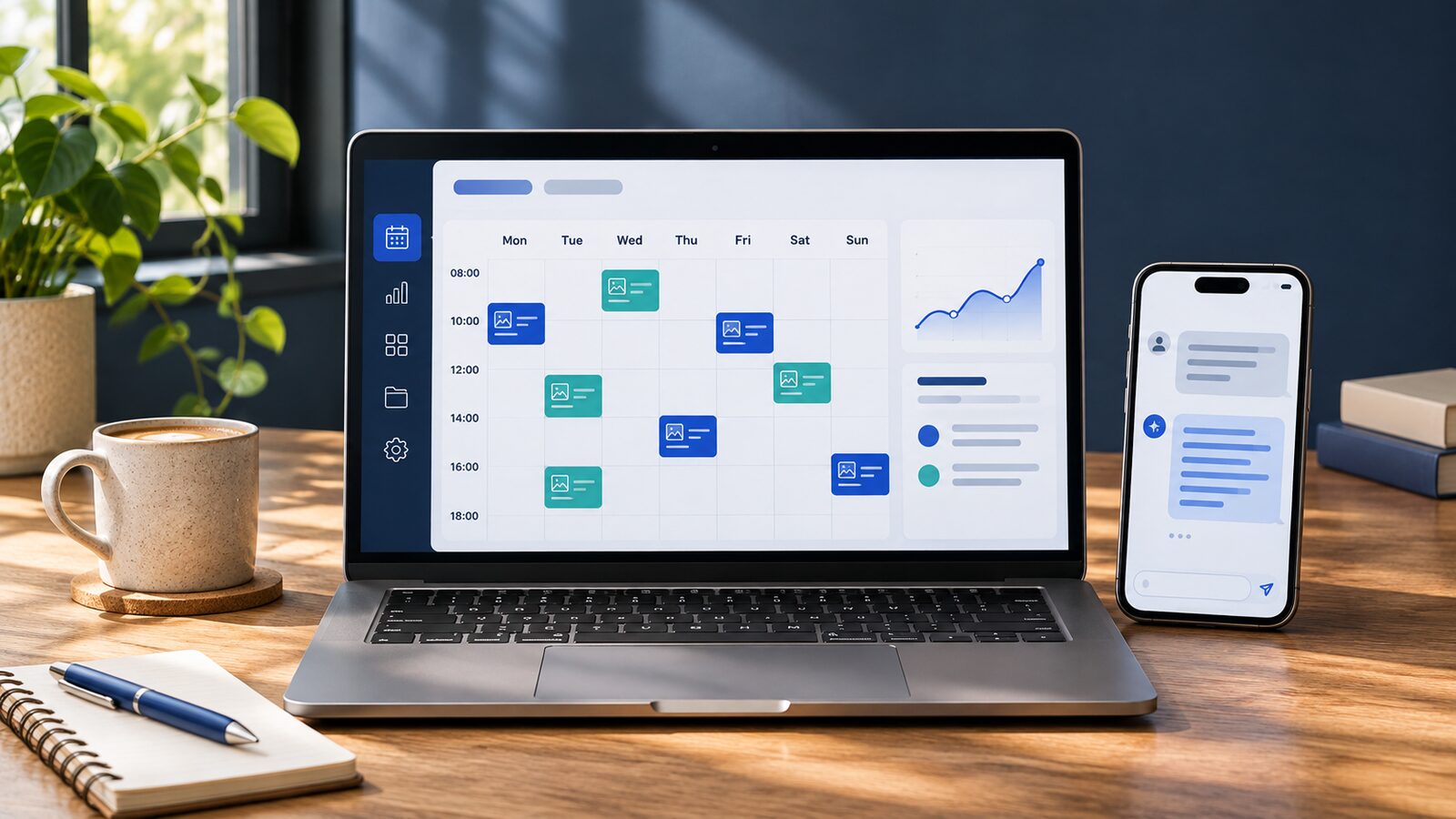
Posting across several social channels gets messy when every caption, image and publishing time lives in a different tab. Metricool gives you a single calendar where you can see what’s queued, spot gaps and adapt a post for each network. Here’s how I’d use it to plan a week of content and see what’s worth repeating.
Start with one brand and a week of content
Set up a brand in Metricool and connect the social profiles you actively use. Open Planning, check the calendar’s time zone, then choose Create post. Select your channels, add your caption and media, and set the date and time. Preview each version before you schedule it, especially if you’re sharing the same idea on Instagram, Threads and Bluesky.
For a first week, try three posts with different jobs. Share a quick tip on Monday, turn a blog article into a short post on Wednesday, and ask a question your audience can answer on Friday. A blog post can become a short tip on Threads, a direct link and takeaway on Bluesky, or a graphic with a tip on Instagram. Use the weekly calendar to catch clashes before anything goes live.
Where your channel supports it, the Best times view shows when your audience is more active. Use it to pick a slot to test and compare it with the times that have worked for you before.
Check which posts did their job
Give each post a goal before you schedule it. If you’re promoting an article, check link clicks where the network reports them. If you’re asking a question, look at the replies and what people actually said. In Analytics, compare posts from the same network over the same period. If one topic earns more of the response you wanted, try another post from a different angle.
Connect Metricool to ChatGPT or Claude with MCP
Metricool’s MCP connector uses the Model Context Protocol to let ChatGPT or Claude work with your connected Metricool account. You can ask in plain English to check your schedule, pull available analytics or create and edit scheduled posts. Your Metricool plan, connected channels and the assistant you use determine which actions are available.
- ChatGPT on the web. Open Apps, search for Metricool for Social Media, choose Connect and authorise access in Metricool. Metricool’s ChatGPT setup guide
- Claude on the web or desktop. Open Settings, choose Connectors, find Metricool in the directory and authorise access. Metricool also documents a separate setup for Claude Code. Metricool’s Claude setup guide
Try this prompt before scheduling anything.
Check next week’s Metricool calendar for my brand in UK time. Find one open afternoon slot for a Threads post and one for a Bluesky post. Show me the times and flag anything already scheduled nearby.
Once you’ve picked a slot, give the assistant the exact brand, channel, date, time and final caption. Open the Planner to check that the post landed where you expected.
Is Metricool Free enough to get started?
Metricool’s Free plan includes one brand, up to 20 scheduled posts per month and 30 days of analytics history. LinkedIn and X are excluded from the Free plan. The MCP connector is available on Free, with your plan limits still applying. Check Metricool’s current plan comparison if you manage several brands or need to publish to a particular channel.
Start by connecting the channels you already use and scheduling a few posts for next week. Then use the calendar and analytics together to decide what to do the following week.